KOSH App Integration Guide
Angel One Broker Integration Documentation
Data to be Ready
Before starting integration, keep the following details ready:
- Angel One Client ID
- Demat Account Password
- Smart API Key
- TOTP from Authenticator App
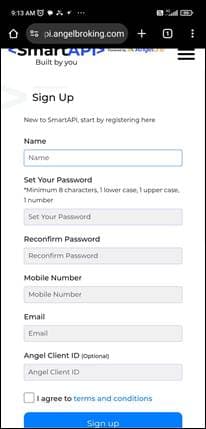
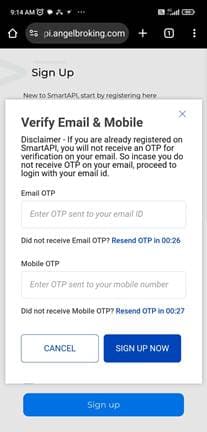
Signup Smart API
- Visit Smart API platform
- Create your account using mobile/email
- Verify OTP
- Login to dashboard

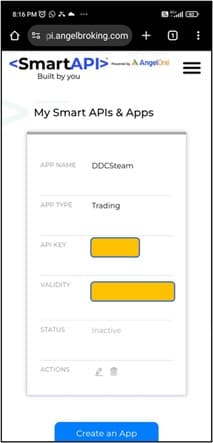
Create App in Smart API for API Key
- User to Login in Smart API web site of Angel One
- Click on “Create App”
- Specify App. Name (for eg. “DozenDiamonds”)
Specify https://dozendiamonds.com in Redirect URL - Enter Users Angel one Client ID
- Click Create App.
- App will be created and displayed on website
- Note down the API key
- Note- User now has (a) Client Code, (b) Angel one Demat account password, (c) API Key


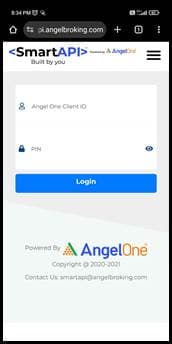
Enable TOTP
- In Smart API click on Enable TOTP from menu
- Enter Angel One Client ID and PIN
- Enter OTP received on mobile
- QR Code will appear on screen
- Scan QR using Authenticator App
- A 6-digit OTP will be generated for login & integration process



Integration Process
Step 1: Open Broker Settings
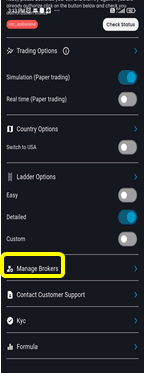
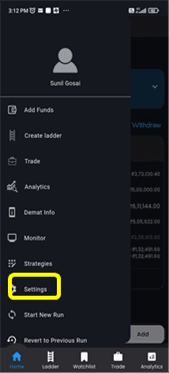
In Dozen Diamonds KOSH App, go to:
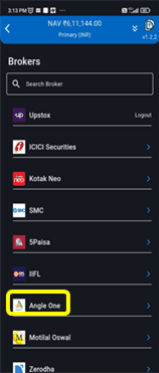
Menu Bar → Settings → Manage Brokers → Angel One
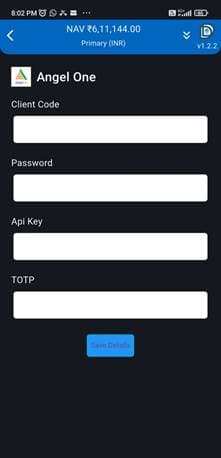
Step 2: Broker Page Appears
After selecting Angel One, the broker integration page will open.
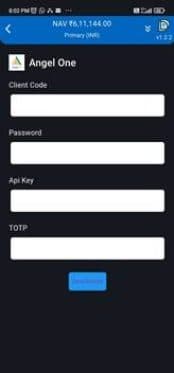
Step 3: Enter Required Details
Fill all required details collected earlier:
- Client ID
- Password
- API Key
- TOTP (Authenticator)
Step 4: Enter TOTP Carefully
Make sure to enter the TOTP within the valid time duration. If expired, generate a new OTP from your Authenticator App.
Step 5: Save & Verify
Click on Save Details.
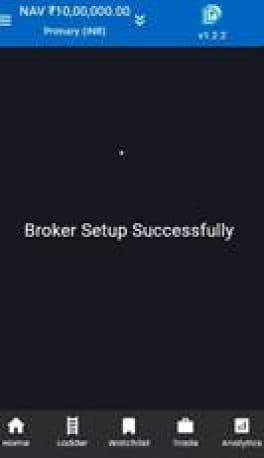
After successful integration, you will receive the message:
"Broker setup successfully"